
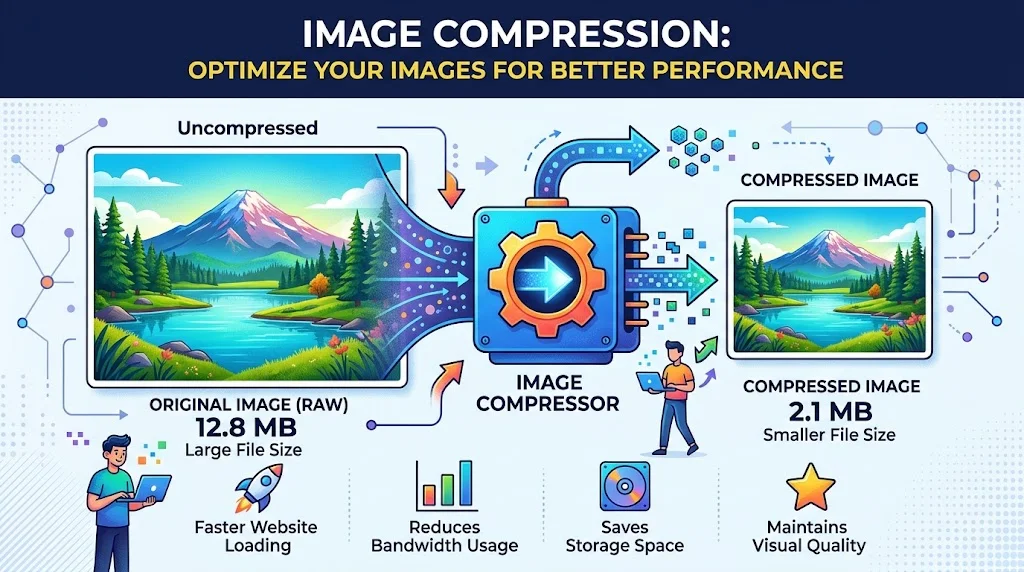
You fill in the whole form. You attach your photo. And then the page says: “File size must be less than 100 KB.”
It’s one of the most irritating small problems online. Job portals, university admissions, government forms and visa applications all set strict file size limits, and a normal phone photo is usually several megabytes. Website owners hit the same wall from the other side, because heavy images make pages slow.
This guide walks you through shrinking an image to a specific size, step by step, and explains what to change when the first attempt doesn’t work.
Why your photo is so big in the first place
A modern phone camera takes pictures that are thousands of pixels wide. That’s far more than a form or a web page ever shows. Two things decide file size:
- Pixel dimensions. More pixels means more data. A 4000 px wide photo is enormous compared to a 1000 px one.
- Quality setting. JPG and WebP are lossy formats. A higher quality number keeps more detail and creates a bigger file.
Most of the time the biggest saving comes from reducing dimensions first, then lowering quality a little. Lowering quality alone often makes a photo look bad before it gets small enough.
The fast way: compress to a target size
The Rumeq Image Compressor lets you type the size you need, so you don’t have to guess and re-upload five times.
- Add your image. Drag it into the box, click to browse, or paste a copied image with Ctrl + V.
- Pick a target size. There are presets for 20 KB, 50 KB, 100 KB, 200 KB, 500 KB, 1 MB and 2 MB, or you can enter your own value in KB. This is an upper limit for each image.
- Set the maximum width or height. The default is 1920 px. For forms, something much smaller is usually enough. Choose a lower option, or keep Original if the form demands exact dimensions.
- Choose the output format. Keep original, JPG or WebP. If the portal asks for JPG, select JPG.
- Click Compress.
- Compare before you download. Check the original and compressed versions side by side, then download.
The tool tries several passes (the default is 10) to get under your target, starting from a quality of 82%.
What to do if it doesn’t reach 100KB
The target isn’t guaranteed for every image. Large, detailed photos are harder to squeeze. If the result is still too big, try these in order:
- Lower the maximum width or height. This is the most effective change. A photo that’s 1920 px wide can often be reduced a lot before anyone notices on a form.
- Switch the output to JPG or WebP. PNG files are usually much bigger than JPG for photos.
- Use the Smallest File preset instead of Balanced or Best Quality.
- Increase the maximum attempts in Advanced options so the tool tries more passes.
- Lower the starting quality (for example from 82% to 70%), then compare the result.
If you turn on Never resize pixels, the tool keeps your original dimensions. That’s useful when a form requires exact size, but it makes small targets harder to hit.
Which settings for which job?
| Situation | Suggested target | Suggested format |
|---|---|---|
| Passport-style photo or ID for an online form | 50 to 200 KB (check the form’s limit) | JPG |
| Job application or CV photo | 100 to 200 KB | JPG |
| Email attachment | 500 KB to 1 MB | Keep original or JPG |
| Blog post or website image | 100 to 300 KB | WebP |
| Product photo for an online store | 200 to 500 KB | JPG or WebP |
| Thumbnails and small previews | 20 to 50 KB | WebP |
These are starting points, not rules. Always follow the exact limit your form or platform states, then check the result by eye.
Compressing many images at once
If you have a folder of product photos or event pictures, don’t compress them one at a time. Add them all, apply one set of settings, and use Download all as ZIP at the end. Each image can be up to 50 MB.
One limit still applies per image, though: the tool aims for your target on each file, so a very large or very detailed photo may need a lower dimension setting than the others.
Your privacy: what happens to the image?
The compression runs inside your browser, so your photo is not sent to a server to be processed. That matters when the picture is an ID, a passport photo or a family photo.
There’s also a setting to strip EXIF and GPS data, which is on by default. Phone photos often carry hidden details such as the camera model, the time the picture was taken and sometimes the location. Removing them before you share an image is a good habit. It won’t remove anything that’s visibly part of the picture itself, such as a street sign behind you.
Mistakes that ruin compressed images
- Compressing the same file again and again. Every lossy pass loses a little more detail. Always start from your original, not from an already-compressed copy.
- Shrinking quality when the real problem is dimensions. Resize first, then adjust quality.
- Converting a transparent PNG to JPG. JPG has no transparency, so the see-through areas will become a solid background. Keep PNG or choose WebP if you need a transparent logo.
- Deleting the original. Keep the full-size file in case you need it later for printing or a different form.
- Ignoring the preview. Always check the before-and-after comparison, especially around faces, text and fine detail.
Need a different format as well?
Sometimes a size limit comes with a format requirement. These tools can help:
- PNG to JPG, which converts PNG images to JPG with a white background
- JPG to WebP, for smaller files on websites
- JPG to PNG, when you need PNG
FAQs
How do I compress a JPG to 100KB? Add the image, choose the 100 KB target, pick JPG as the output and click Compress. If it’s still above 100 KB, reduce the maximum width or height and try again.
Can I compress JPEG to 200KB online for free? Yes. The tool is free, needs no signup, and has a 200 KB preset.
Will compression reduce my image quality? Usually a little, because JPG and WebP are lossy. Use the comparison view and the Best Quality preset if detail matters.
Which formats does it support? JPG, PNG and WebP, with output as JPG, WebP or the original format.
Is there a file size limit? Up to 50 MB per image.
Are my images uploaded anywhere? No. They’re processed in your browser.
Can I compress several images and download them together? Yes. Use Download all as ZIP, or Download separately.
Try it on your own photo
The quickest way to find the right balance is to run your photo through once and look at the result. Open the Rumeq Image Compressor, set the size your form asks for, and compare the result before you download it. You can also browse the rest of the free tools on Rumeq.