
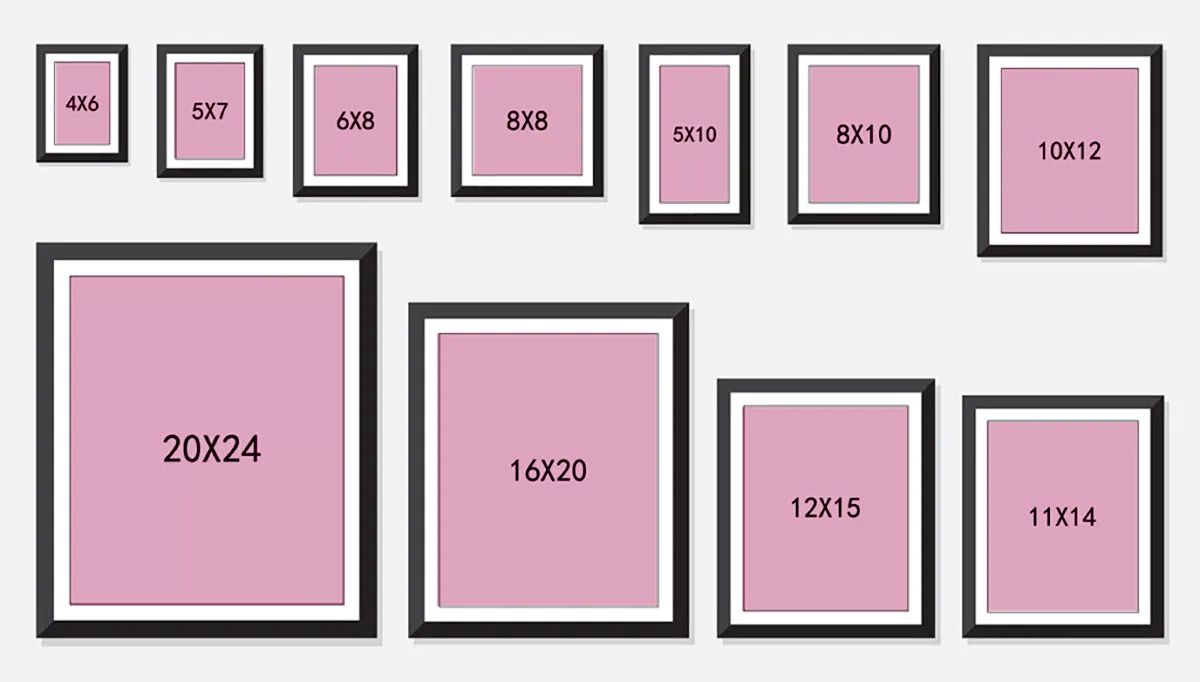
Not sure what size your images should be? Get the right dimensions for Instagram, Facebook, YouTube, LinkedIn and your blog, plus a free way to resize them.
Best Image Sizes for Social Media, Blogs and Websites (2026 Cheat Sheet)
You finish a great design, upload it, and then the platform crops your face, blurs the text, or squeezes the image into something unrecognizable. It happens to almost everyone, and the reason is simple: every platform expects a different image size.
This cheat sheet gives you the commonly recommended dimensions for the most popular places, plus an easy way to resize any image for free. Bookmark it, because you will probably need it again.
Quick Size Reference Table
| Where you are posting | Recommended size (px) | Ratio |
|---|---|---|
| Instagram post (square) | 1080 x 1080 | 1:1 |
| Instagram post (portrait) | 1080 x 1350 | 4:5 |
| Instagram / Facebook Story, Reels | 1080 x 1920 | 9:16 |
| Facebook shared image | 1200 x 630 | 1.91:1 |
| YouTube thumbnail | 1280 x 720 | 16:9 |
| LinkedIn post image | 1200 x 627 | 1.91:1 |
| X (Twitter) post image | 1600 x 900 | 16:9 |
| Pinterest pin | 1000 x 1500 | 2:3 |
| WhatsApp profile photo | 500 x 500 | 1:1 |
| Blog featured image | 1200 x 630 | 1.91:1 |
| Website hero banner | 1920 x 1080 | 16:9 |
Platforms update their layouts from time to time, so treat these as safe, widely used sizes and double-check if a platform changes its design.
Why Image Size Matters
Better look. The right ratio means nothing important gets cropped out.
Faster pages. Oversized images are one of the biggest reasons websites load slowly. A photo straight from a phone can be 4000 pixels wide, while your blog only displays it at around 800.
Better SEO. Fast pages tend to keep visitors longer and perform better in search.
Cleaner sharing. When you share a link, a properly sized featured image appears neatly in previews on Facebook, LinkedIn and messaging apps.
How to Resize an Image for Free
You do not need Photoshop or any software.
- Open the free Image Resizer.
- Upload your image.
- Enter the width and height you need (use the table above). Keep the aspect ratio locked if you do not want the picture to look stretched.
- Download the resized image and upload it to your platform.
It works in your browser, so there is nothing to install.
Choosing the Right Size for Each Use
Social media posts
Start from the exact platform size in the table. Keep important text and faces away from the edges, because apps often crop slightly in feeds and profile views.
Blog and website images
Do not upload a huge image and let the page shrink it. Resize first. For most blog layouts, a width between 800 and 1200 pixels is plenty. Smaller files mean faster loading, especially on mobile data.
Thumbnails and banners
Thumbnails are viewed small, so keep text big and simple. For banners, leave extra space around the main subject because different screens crop banners differently.
Profile pictures
Use a square image with the face centered. Platforms crop it into a circle, so corners are not visible.
Common Mistakes to Avoid
- Stretching an image by changing width and height without keeping the ratio.
- Enlarging a small image. Making a small picture bigger makes it blurry. Always start from the largest original you have.
- Uploading full camera size to a blog. It slows the page for no visual benefit.
- Putting key text at the edges where it can be cropped.
- Ignoring file size. Even a correctly sized image can be heavy, so compress it when possible.
Quick Tips for Sharper Results
- Work from the original file, not a screenshot or a copy that was already compressed.
- Resize once. Repeated resizing slowly reduces quality.
- Use JPG for photos and PNG for graphics with text or transparency.
- Name files clearly, for example
red-running-shoes.jpginstead ofIMG_4523.jpg. It helps image SEO. - Always add alt text on your website to describe the image.
Final Thoughts
Getting image sizes right takes a minute, but it makes your posts look professional and your website faster. Keep the table above handy, and use the free Image Resizer whenever you need to adjust a picture quickly.
Frequently Asked Questions
What is the best image size for a blog post?
A featured image of 1200 x 630 pixels works well for most blogs and also looks good when shared on social media.
Does resizing reduce image quality?
Making an image smaller keeps it sharp. Making it much larger than the original can make it blurry.
Is the image resizer free?
Yes, you can use it without paying.
What is aspect ratio?
It is the proportion between width and height, such as 1:1 or 16:9. Keeping it the same while resizing prevents stretching.
Can I resize images on my phone?
Yes, the tool works in a mobile browser as well.